Localization
By providing DyScan Web with a localization dictionary you can support multiple languages, or customize the UI text to your liking.
Scan starting explanation page
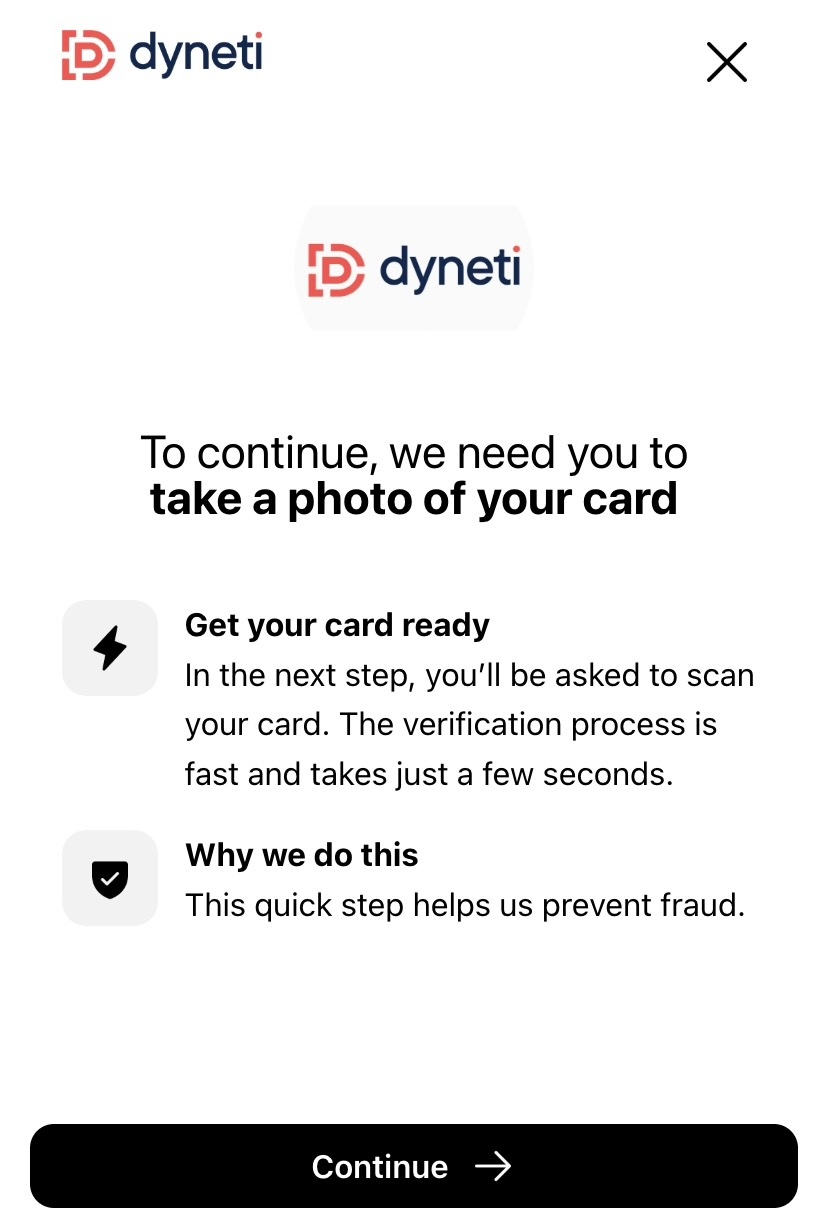
explanationHeadline
default "To continue, we need you to"
explanationAction
default "take a photo of your card"
explanationPrepare
default "Get your card ready"
explanationPrepareInstructions
default "In the next step, you’ll be asked to scan your card. The verification process is fast and takes just a few seconds."
explanationWhyHeadline
default "Why we do this"
explanationWhyReason
default "This quick step helps us prevent fraud."
Buttons
actionContinue
default "Continue"
actionRetry
default "Retry"
actionClose
default "Close"
scanOtherSide
default "Scan Other Side"
Scan Page (side with card number)
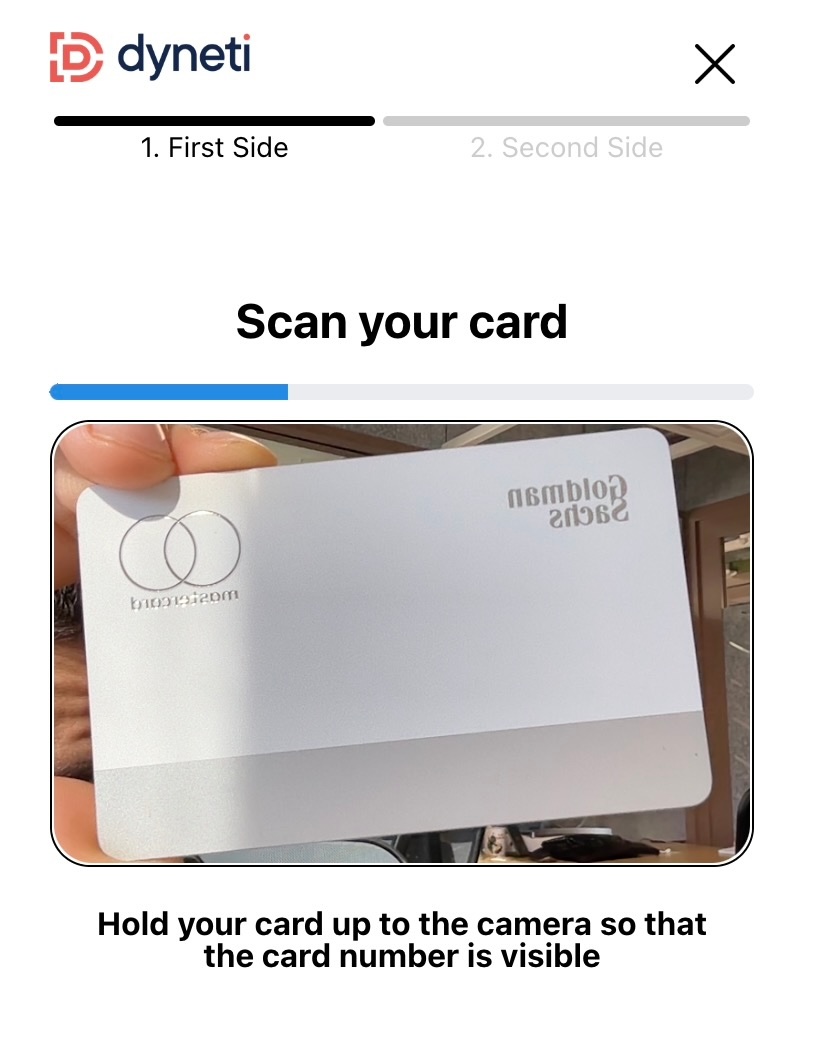
scanHeadline
default "Scan your card"
scanInstruction
default "Hold your card up to the camera so that the card number is visible"
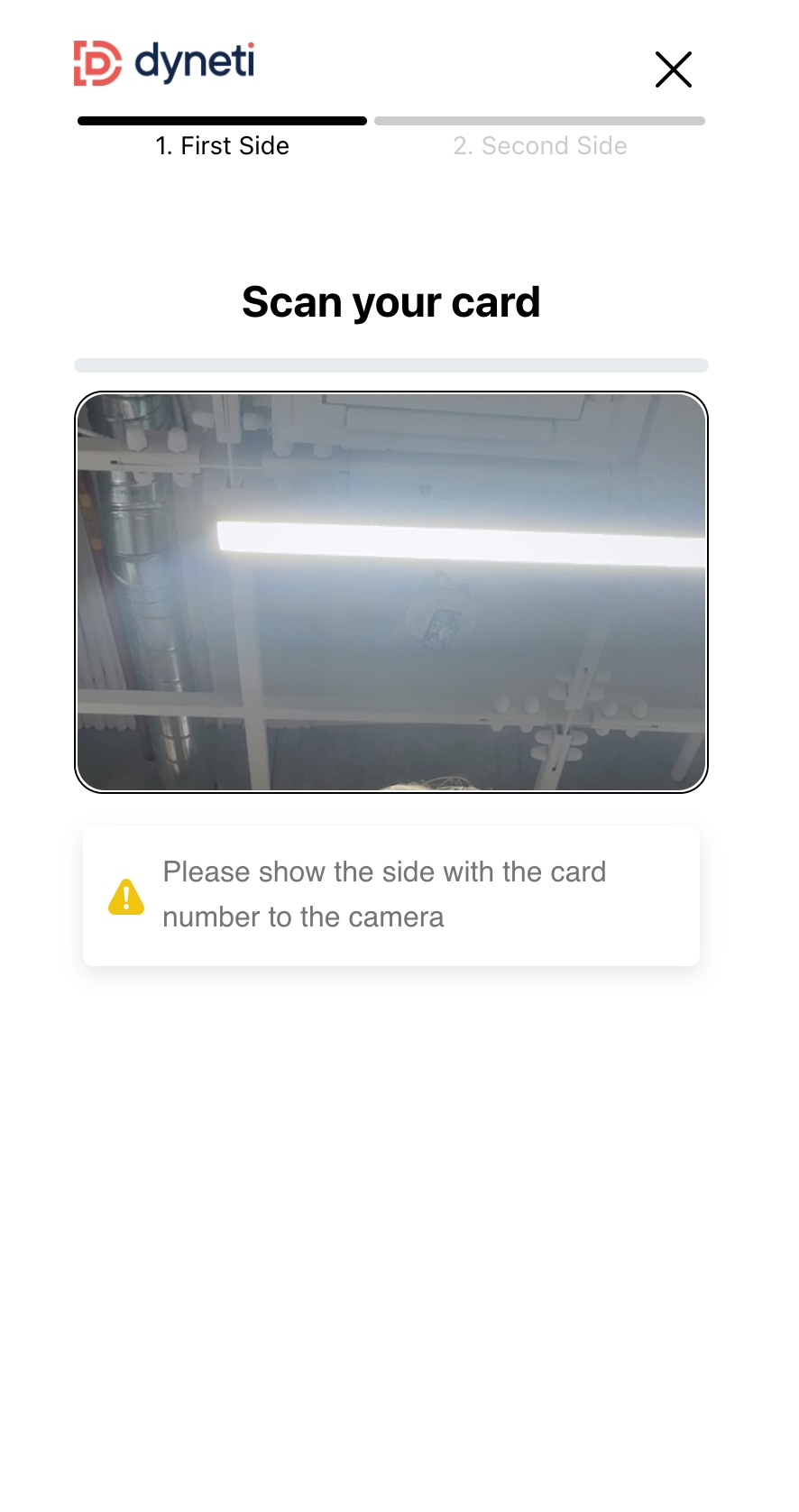
fewDigitsSeen
default "Please show the side with the card number to the camera"
First / Second side progress bar
stepFirstSide
default "First Side"
stepSecondSide
default "Second Side"
Card flipping explanation page
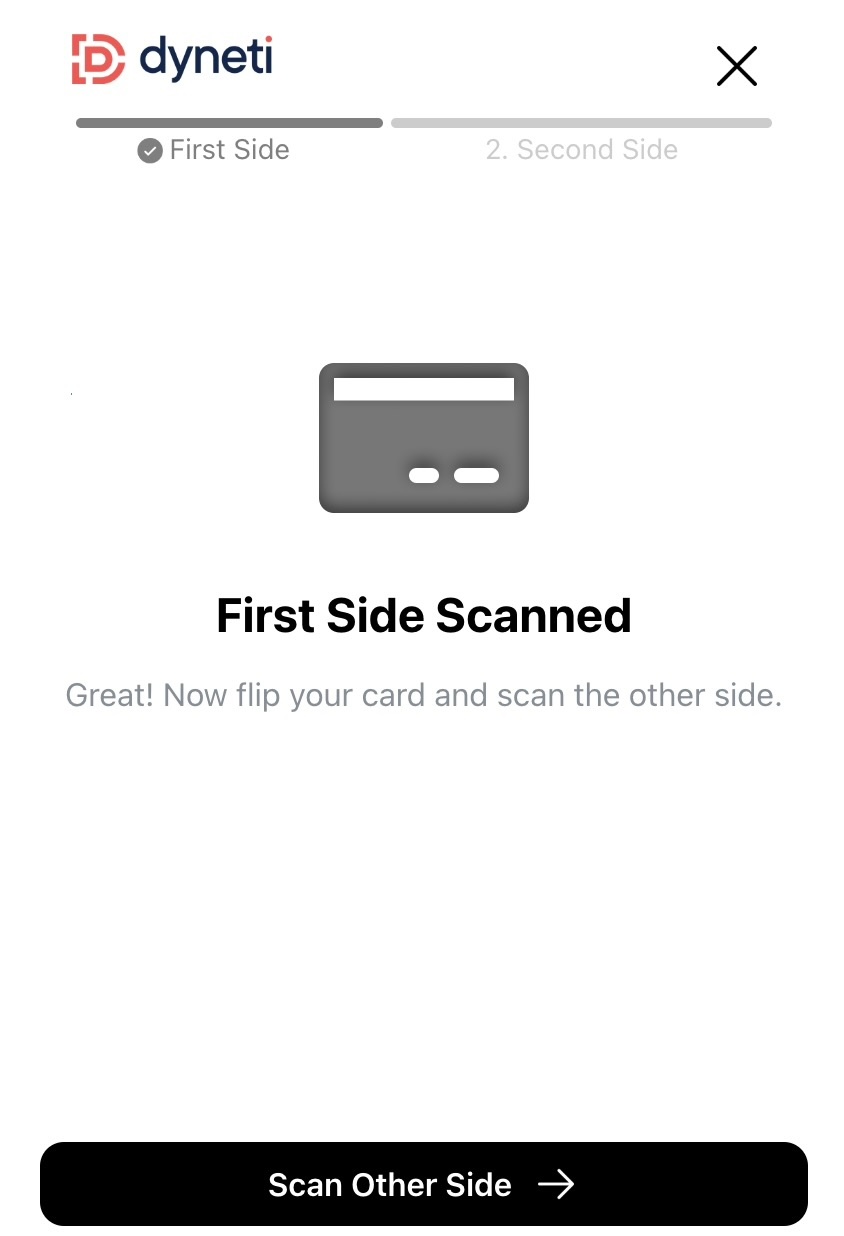
scanFirstSideScanned
default "First Side Scanned"
scanFlipYourCard
default "Great! Now flip your card and scan the other side."
Scan page (opposite side)
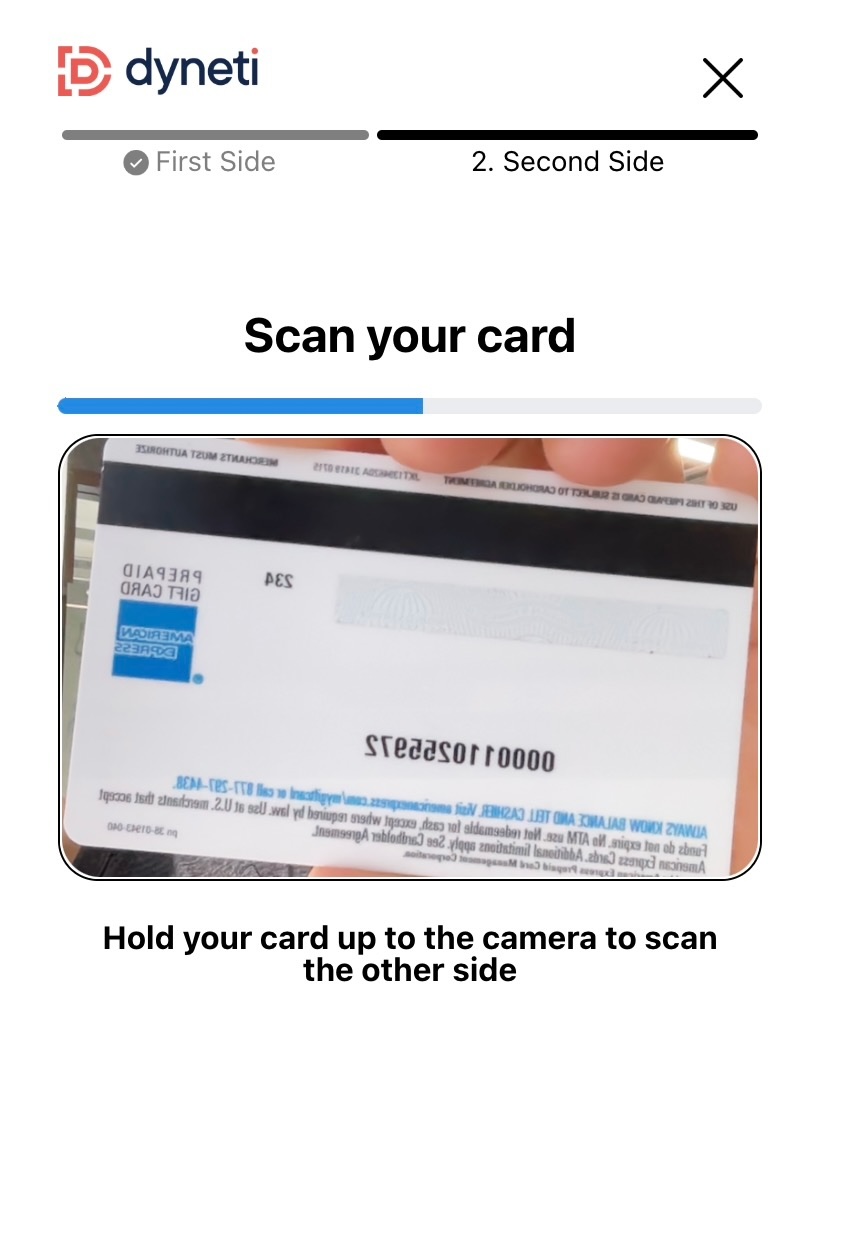
scanInstructionOtherSide
default "Hold your card up to the camera to scan the other side"
Throbber and toast messages
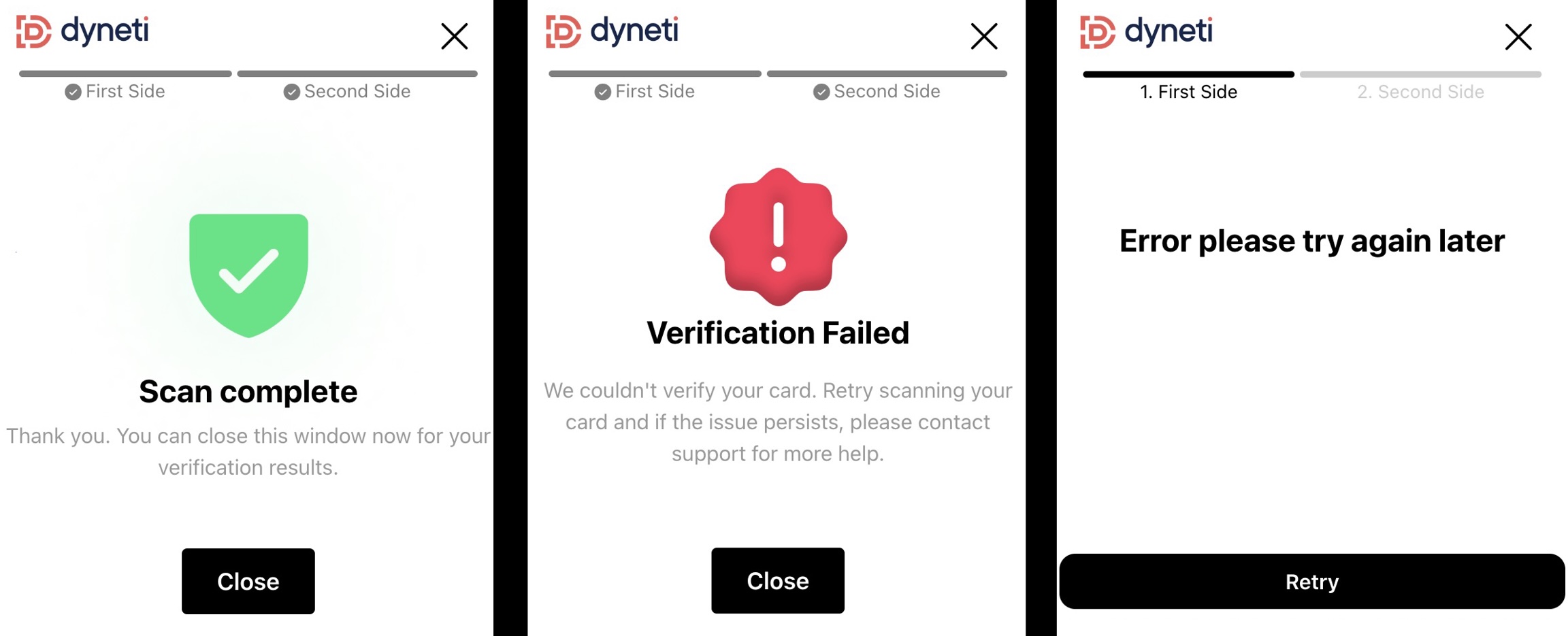
throbberText
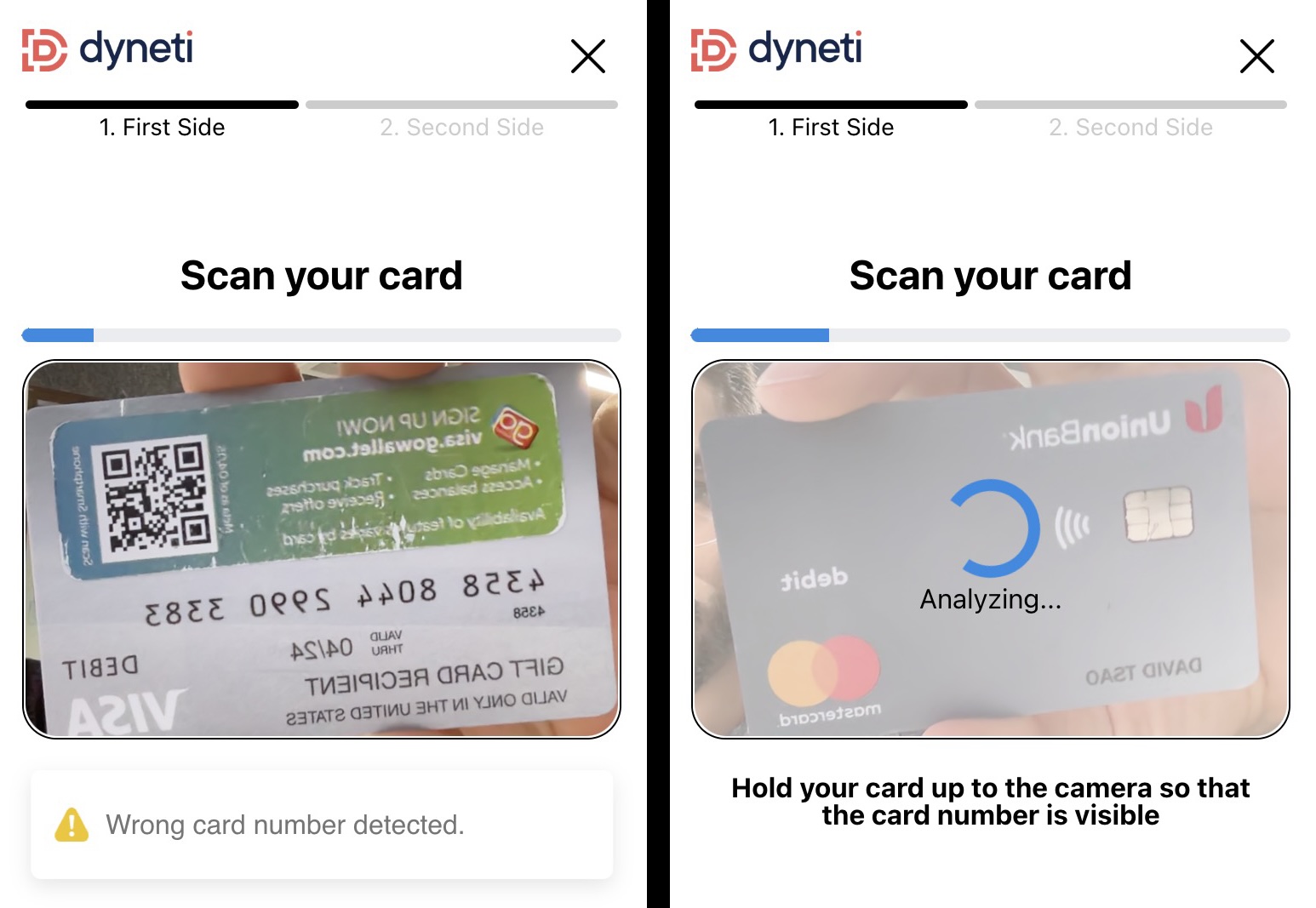
default "Analyzing..."
wrongCardDetectedMessage
default "Wrong card number detected"
This localization string supports displaying the last four digits of the card the scan was looking for to the user.
Use the token {expectedLastFour} to indicate where this value should be shown e.g.
"Wrong card number detected. Please scan card ending in {expectedLastFour}"
rightCardDetectedMessage
default "Scanning card starting in {expectedFirstSix} and ending in {expectedLastFour}"
Completed scan and error messages